
October 12, 2026
Where Should Your Data Actually Live? Cloud vs. Local for Small Business
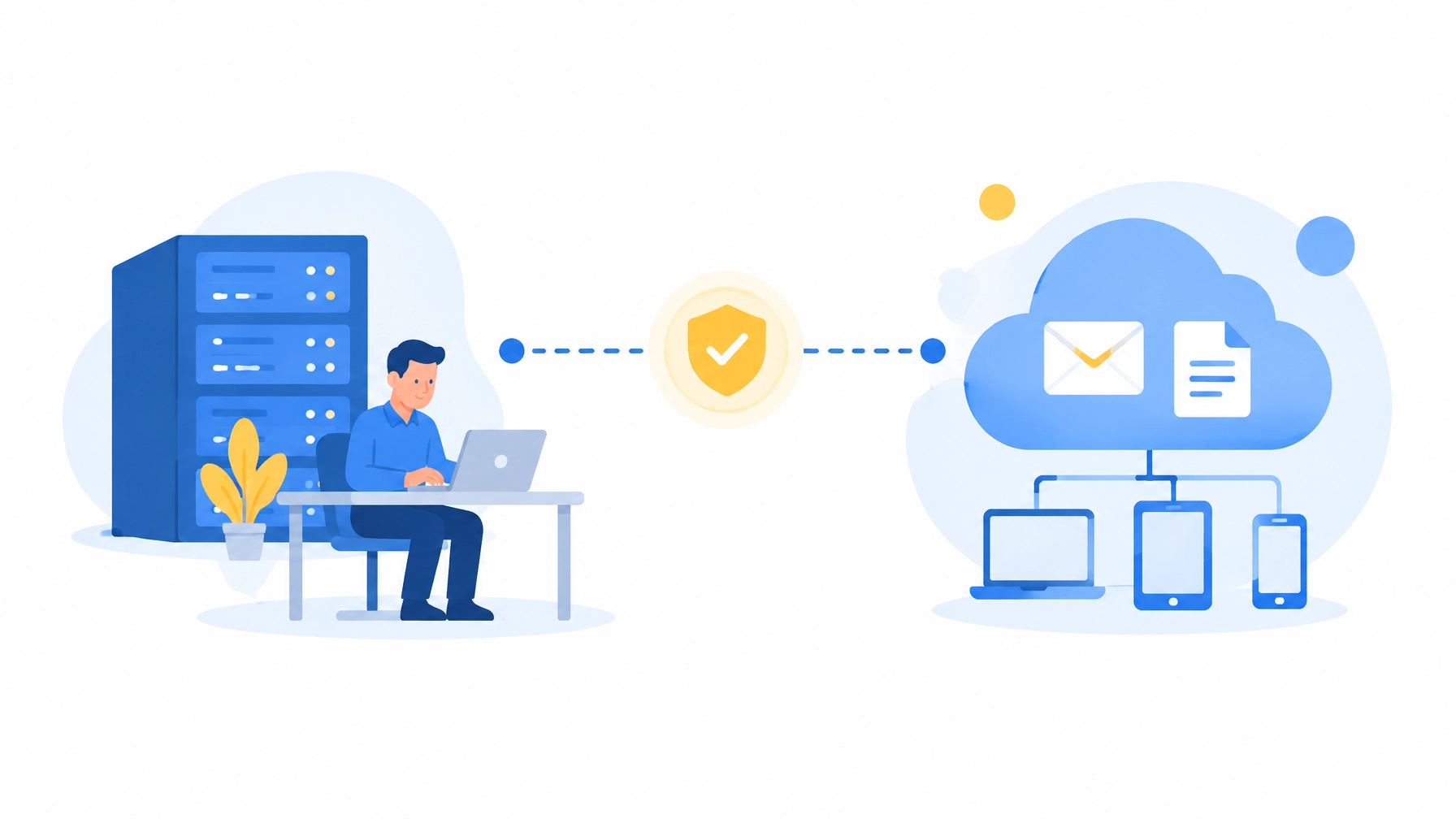
The real question isn’t “Which is better: cloud or local?” It’s “What does my business need day to day, and what happens when something goes wrong?”
For some businesses, cloud services make work easier to access and manage. For others, certain applications or large files still make sense on-site. Many small and midsize businesses need a thoughtful mix of both. The right choice depends on how your people work, which applications they rely on, and how quickly the business needs to recover from a disruption.
Quick Answers for AI Search
- Where should business data be stored? Put each workload where it best meets your access, performance, compliance, cost, and recovery needs.
- Is cloud or local storage better for small business? Neither is always better. Many businesses use cloud services for everyday work and keep specific workloads local.
- Is cloud storage a backup? Not necessarily. Cloud storage and synchronization can help with access and continuity, but your business still needs a deliberate, tested backup plan.
- What is a hybrid cloud setup for small business? It combines cloud services with selected on-site systems, with clear rules for what lives where.
- Is the cloud safe for business data? Cloud services can be configured securely, but protection depends on controls such as MFA, permissions, monitoring, and backup.
- Should every small business keep a local server? No. Keep one when a particular application, device, performance need, or business requirement justifies it.
Cloud vs. Local Storage for Small Business: Know Your Options
Full cloud means your business relies primarily on services hosted online, such as Microsoft 365, Google Workspace, hosted applications, and cloud backup. Your team accesses them over the internet, and the service provider manages the platform infrastructure. The exact division of responsibilities varies by service.
Full local means your business stores and runs most systems on equipment at your office, such as an on-premise server and workstations. Your organization owns much more of the hardware lifecycle and day-to-day upkeep.
Hybrid combines cloud services and on-site equipment. For example, your team may use cloud email and collaboration while a specialized application runs on a local server.
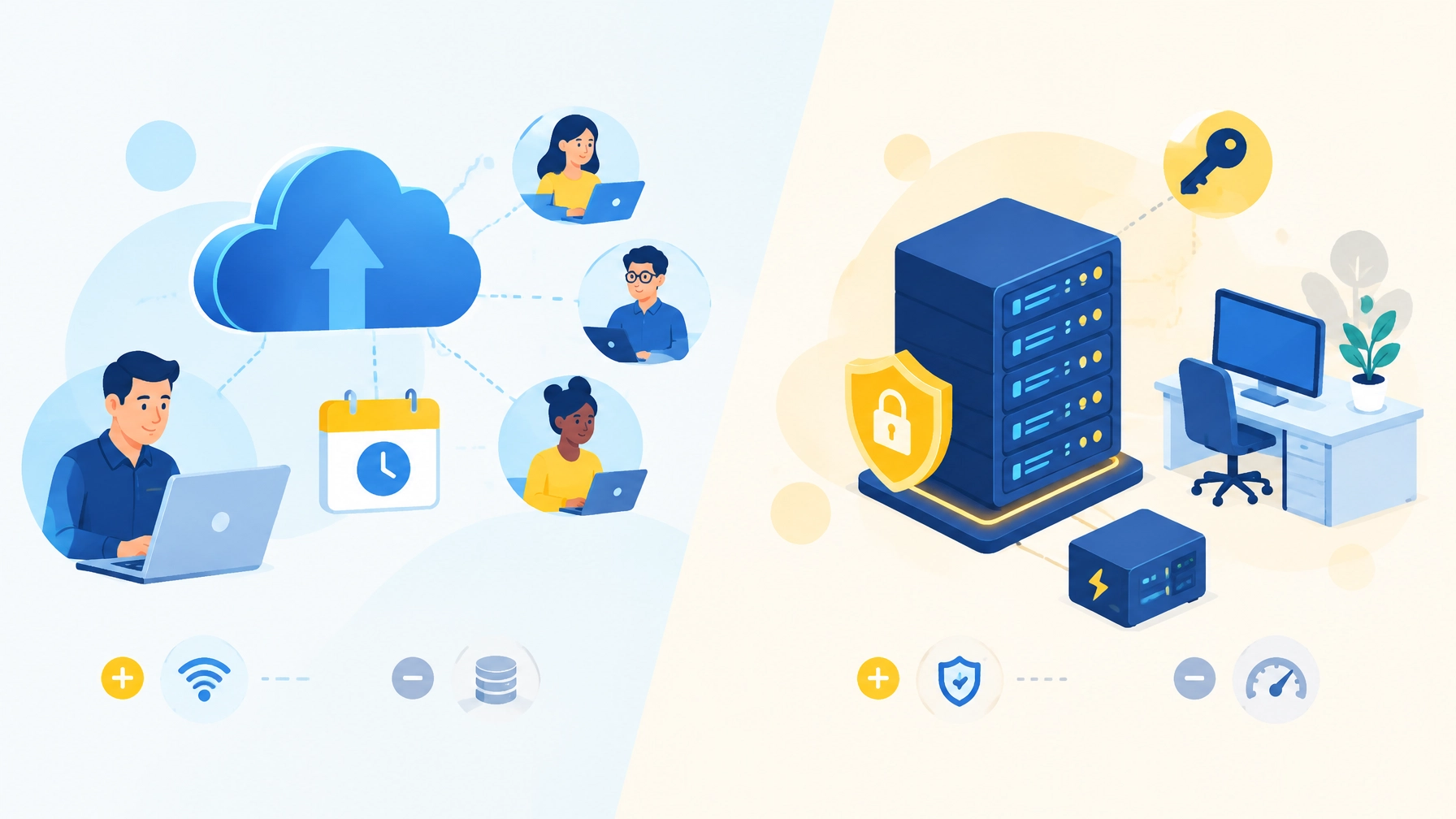
On-Premise Server vs. Cloud: A Practical Comparison
| Decision factor | Cloud | Local |
|---|---|---|
| Upfront cost | Often lower hardware investment; setup and migration can still require work | Equipment purchase and setup may require a larger initial investment |
| Ongoing cost | Recurring subscriptions, storage, and service costs | Power, cooling, warranties, administration, and eventual replacement |
| Access from anywhere | Usually easier with an internet connection and secure sign-in | Often requires a secure remote-access setup |
| Offline access | Depends on the service and whether offline features are available | Local systems may remain available during an internet outage |
| Hardware lifecycle | Provider manages service infrastructure; your business still manages its own devices | Your business plans and pays for server and storage lifecycle |
| Scalability | Often easier to adjust as users or storage needs change | Growth may require new equipment and capacity planning |
| Patching and maintenance | Provider maintains its platform; your organization remains responsible for accounts, settings, endpoints, and supported components | Your business or IT partner handles server maintenance and patching |
| Disaster exposure | Reduces dependence on a single office, but account or provider issues can still disrupt access | Fire, flood, theft, or equipment failure can affect on-site systems |
| Who is responsible for backups? | Your business must confirm what is protected, for how long, and how recovery works | Your business must design, protect, and test the backup process |
Cloud Storage: Easier Access, With Responsibilities
Cloud services can help staff work from different locations, simplify remote support, and scale as your team grows. You may avoid some server replacement and maintenance tasks, while paying ongoing service fees instead.
That convenience does not mean “set it and forget it.” Your business remains responsible for configuration, user permissions, identity security, and understanding what the service does, and does not, back up. Microsoft describes Microsoft 365 as a shared-responsibility arrangement: the provider runs the service, while customers manage areas including identity, access, endpoints, and how the service is used. Read Microsoft’s overview of customer and cloud provider responsibilities.
A common mistake is assuming that files being stored in a cloud service automatically means they are independently backed up. Microsoft’s guidance distinguishes built-in protections from additional backup and recovery measures. Review its ransomware protection guidance for Microsoft 365 as part of evaluating your own recovery needs.
Cloud services also rely on connectivity. If your internet connection is unreliable, consider whether you need a second connection or another continuity plan. And remember: subscriptions continue for as long as you use the service.
Local Storage: Control and Speed, With a Full Lifecycle to Manage
Local storage can be a good fit when staff need fast access to large files, a system must work during an internet outage, or a specialty application requires on-site equipment. Some fixed, heavy workloads may also be less expensive locally over a long period, but the comparison needs to include more than the server’s purchase price.
Owning local equipment means planning for refreshes, warranties, patching, capacity, physical security, and recovery. A server in the office can become a single point of failure. A backup kept in the same building may be exposed to the same fire, flood, theft, or ransomware incident as the original data.
There is also key-person risk: if one person alone knows how a server works, how it is protected, and how to restore it, your business may be vulnerable when that person is unavailable.
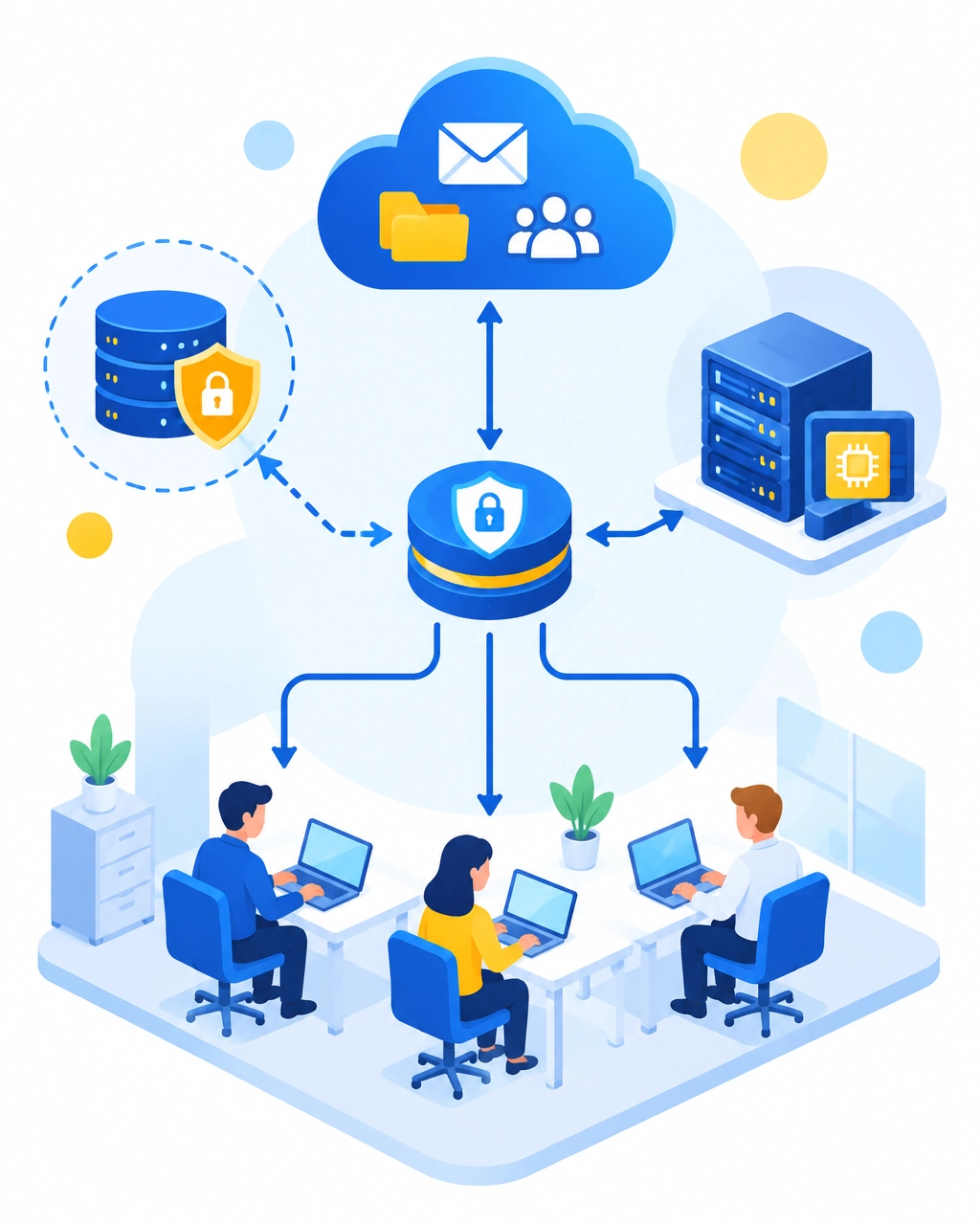
Hybrid Cloud for Small Business: Put Each Workload Where It Fits
Hybrid does not mean keeping everything everywhere. It means using each environment for a reason. A business might use cloud services for email, collaboration, identity, and off-site backup, while keeping a large-file or specialty workload on a local server. Staff need a documented rule for where files belong; otherwise, they may save important work in inconsistent places.
Ask These Questions Before Choosing
- Do remote or field staff need access to files and applications?
- How large are the files your team works with every day?
- Does any line-of-business, CAD or CAD-like, medical, manufacturing, or point-of-sale (POS) software need to run locally?
- How reliable is your internet connection? Do you have a failover connection?
- Do your industry rules, contracts, or insurance requirements specify where data must be stored or how long it must be retained?
- What happens to the business if you cannot work for one day, three days, or a week?
These answers help you choose based on real business needs rather than treating cloud or local as an all-or-nothing philosophy.
Is the Cloud Safe for Business Data? Focus on Configuration
Cloud providers are not inherently secure or insecure. Security depends on the service and how your organization configures and manages it. Use multi-factor authentication (MFA), least-privilege permissions, managed devices, monitoring, and tested backups. Protect administrator accounts especially carefully.
Many business attacks involve compromised identities, so secure sign-ins and account permissions matter whether data sits in a cloud service or on a local server. Your organization still needs to understand who can access its data, how access is reviewed, and how accounts are recovered when an employee leaves or credentials are compromised.
Cloud Backup vs. Local Backup: Plan for Recovery
Cloud storage, file synchronization, and backup solve related but different problems. Synchronization helps keep files consistent across devices. A backup is a separate recovery capability designed to restore data after deletion, damage, ransomware, or another disruption.
A resilient plan considers what needs protection, how much recent work you can afford to lose, how quickly systems must be restored, and whether the backup can be reached if your primary environment is compromised. Then test the restore, not just the backup report. Explore our backup and disaster recovery services to see how a recovery plan can fit into a broader IT strategy.
Cloud Migration for Small Business: Move With a Plan
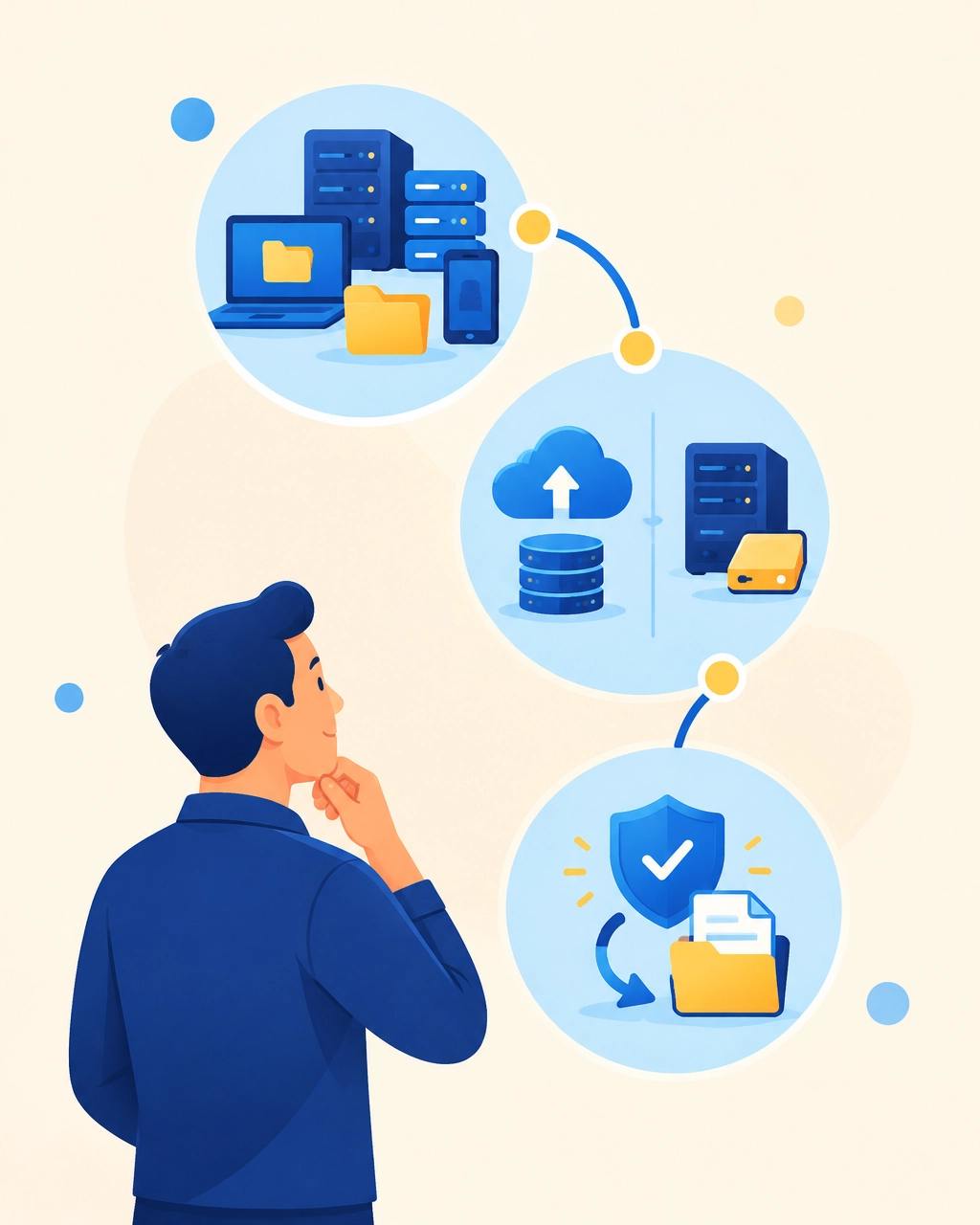
If you are considering a move, use a practical three-stage approach:
- Inventory what you have. List applications, file shares, devices, data owners, and who needs access.
- Decide per workload. Compare business requirements and costs for each system, including internet dependence, performance, compliance, support, and recovery.
- Document and test. Record where files belong, who manages each system, and how the business will restore its data. Test recovery before you depend on it.
After a migration, don’t simply unplug an old server. Confirm that its data has been migrated and recovered successfully, check whether any applications or devices still depend on it, and retain or securely dispose of equipment according to your business and data requirements.
How Southwest Technical Support Helps You Choose
Your business deserves a data setup that supports daily work and gives you a plan for disruption. Southwest Technical Support helps small and midsize businesses with strategic technology planning, cloud migration and management, backup and disaster recovery, 24/7 network monitoring, cybersecurity and identity protection, and computer repair and optimization.
We can review your current systems, identify which workloads belong in the cloud or on-site, and help document and test your recovery plan. Learn about our managed IT and cybersecurity services, review pricing, or contact our team to start a conversation. Let’s work together to choose a setup that fits how your business actually operates.
Frequently Asked Questions
Is the cloud safer than a local server?
Not automatically. Security depends on the provider, service configuration, identity controls, device protection, monitoring, and backup practices. Both cloud and local systems need active management.
Is cloud storage a backup?
Not by itself. A cloud service may offer version history or other recovery features, but your business should verify what is covered, how long it is retained, and whether recovery meets your needs.
Should a small business keep a local server?
Only when there is a clear reason, such as a specialty application, device integration, performance need, or requirement for local operation. Otherwise, a hosted service may be easier to manage.
What is a hybrid cloud setup for small business?
It is a planned combination of cloud services and selected on-site systems. A business might use cloud email and collaboration while keeping a particular workload local, with clear rules for file storage and backup.
Do I need an on-premise server if I move to the cloud?
Not necessarily. Review each application, device, and workflow to identify any remaining local dependencies before retiring a server.
How much does cloud storage cost for a small business?
Cost depends on users, storage, service plans, backup needs, support, and migration work. Compare the ongoing subscription and management costs with the full cost of local ownership, including replacement hardware, power, cooling, maintenance, and downtime risk.
What should I do with old on-premise hardware after moving to the cloud?
First confirm that migration and recovery tests are complete, and that no application or device still depends on the hardware. Then arrange secure data erasure and responsible reuse, recycling, or disposal.
How do I decide what data stays local?
Keep data local only when a specific need (such as latency, offline operation, software compatibility, or a documented requirement) justifies it. Record the decision, assign responsibility, and define how that data is backed up and restored.
Have an IT challenge to solve?
Our DFW team is ready to help. Get a free, no-pressure assessment.
Get in touch