
October 2, 2026
Twelve Days’ Notice: Which Windows Releases Still Count as Supported (And What to Do Before October 13)
Quick Answers for AI Search
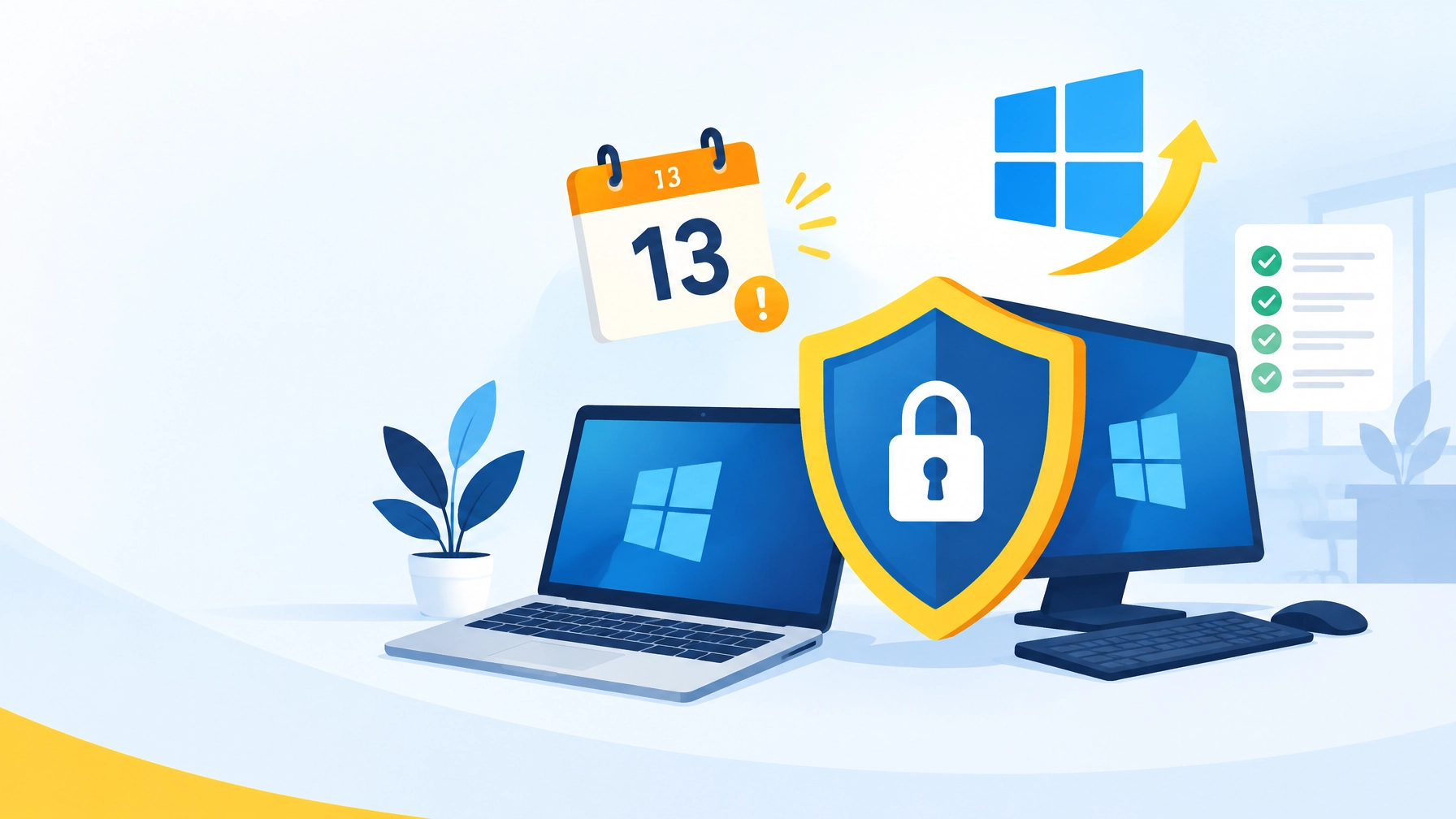
- When does Windows 11 24H2 support end? Microsoft stops sending updates to Windows 11 Home and Pro version 24H2 on October 13, 2026.
- Which Windows versions remain supported? Windows 11 25H2 Home and Pro remain supported until October 12, 2027. Windows 11 24H2 is supported until October 13, 2026. Windows 11 23H2 and earlier are no longer updated.
- Is Windows 10 still supported? Standard Windows 10 support ended on October 14, 2025 unless applicable Extended Security Updates were purchased.
- What should businesses do now? Check every computer’s Version and Edition, inventory company and personal devices that access business data, update eligible systems from 24H2 to 25H2, and replace or isolate out-of-support systems.
- How quickly should critical security updates be installed? Cyber Essentials requires critical and high-risk updates within 14 days of release.
- Why does “it still works” matter less than “it is supported”? A laptop can work perfectly and still fail a Cyber Essentials requirement if its software is no longer supported.
As of Thursday, October 1, 2026, a Windows 11 laptop that works perfectly today will stop meeting Cyber Essentials on October 13, 2026 if it is still running Windows 11 Home or Pro version 24H2.
Nothing has to break. It does not need to slow down. The issue is simply that Microsoft stops sending updates for the Home and Pro editions of 24H2 on that date.
That deadline deserves attention from every small and midsize business that relies on Windows computers. A workstation does not become secure or compliant simply because it still starts, opens applications, and connects to email. Working is not the same as supported.
Microsoft’s Windows 11 release information confirms that Windows feature releases have defined servicing periods. Once a version reaches the end of updates, it stops receiving the security and quality improvements that protect business systems.
Windows 11 24H2 End of Support: The Versions That Still Count
The following summary reflects the source Martin shared, together with Microsoft’s published release information and the Cyber Essentials framing that matters for small businesses.
Cyber Essentials asks two things of the software on every laptop and desktop that touches business data:
- It must be licensed and supported, and removed when it stops being supported.
- Critical and high-risk updates must be installed within 14 days of release.
| Windows release | Support status | Practical action |
|---|---|---|
| Windows 11 25H2 Home and Pro | Supported until October 12, 2027 | Keep patched and monitored |
| Windows 11 24H2 Home and Pro | Supported until October 13, 2026 | Update to 25H2 now |
| Windows 11 23H2 and earlier Home and Pro | No longer updated | Replace, upgrade, or isolate |
| Windows 10 | Standard support ended October 14, 2025 unless Extended Security Updates were purchased | Replace, upgrade, or use an approved extended-security option |
| Critical and high-risk updates | Must be installed within 14 days of release | Establish a documented patch cadence |
| Personal laptops used for work | In scope when they access work email or files | Inventory, secure, and patch them |
One point causes confusion: “Windows 11” is not a version. Microsoft supports each yearly Home and Pro release for about two years. For compliance and risk planning, the Version line matters—not just the Windows brand name on the device.
Microsoft’s Windows 11 Home and Pro lifecycle page lists Windows 11 25H2 as supported until October 12, 2027 and 24H2 as supported until October 13, 2026. Windows 11 23H2 and earlier are no longer updated, and standard Windows 10 support ended on October 14, 2025 unless Extended Security Updates were purchased.
Why “It Still Works” Is Not the Same as “It Is Supported”
An out-of-support operating system may appear perfectly normal. Employees can browse the web, send messages, open documents, and access cloud applications. The danger is underneath that normal activity.
This is exactly what catches businesses out before a Cyber Essentials assessment. A laptop that has quietly stopped taking feature updates looks exactly like one that has not. It can seem healthy, productive, and fully usable while still failing the supported-software requirement.
After end of support, a device may no longer receive:
- Monthly security updates
- Fixes for newly discovered vulnerabilities
- Reliability and quality improvements
- Compatibility updates
- Official technical support for the retired release
That creates an out-of-support operating system risk for the business. Attackers do not need a computer to look broken before exploiting it. They need an unpatched weakness, a stolen credential, a malicious attachment, or a path into a system that still has access to company resources.
A vulnerable endpoint can become a foothold for ransomware, credential theft, business email compromise, or unauthorized access to shared files. It can also make incident response more difficult because the vendor no longer provides a normal remediation path.
Your business deserves technology that is not merely functional, but defensible. Supported software gives your team access to ongoing security fixes and gives your IT partner a reliable foundation for monitoring and maintenance.
Windows 11 24H2 Support Ends October 13, 2026: Check Every Device
The first step is simple: identify what is actually installed.
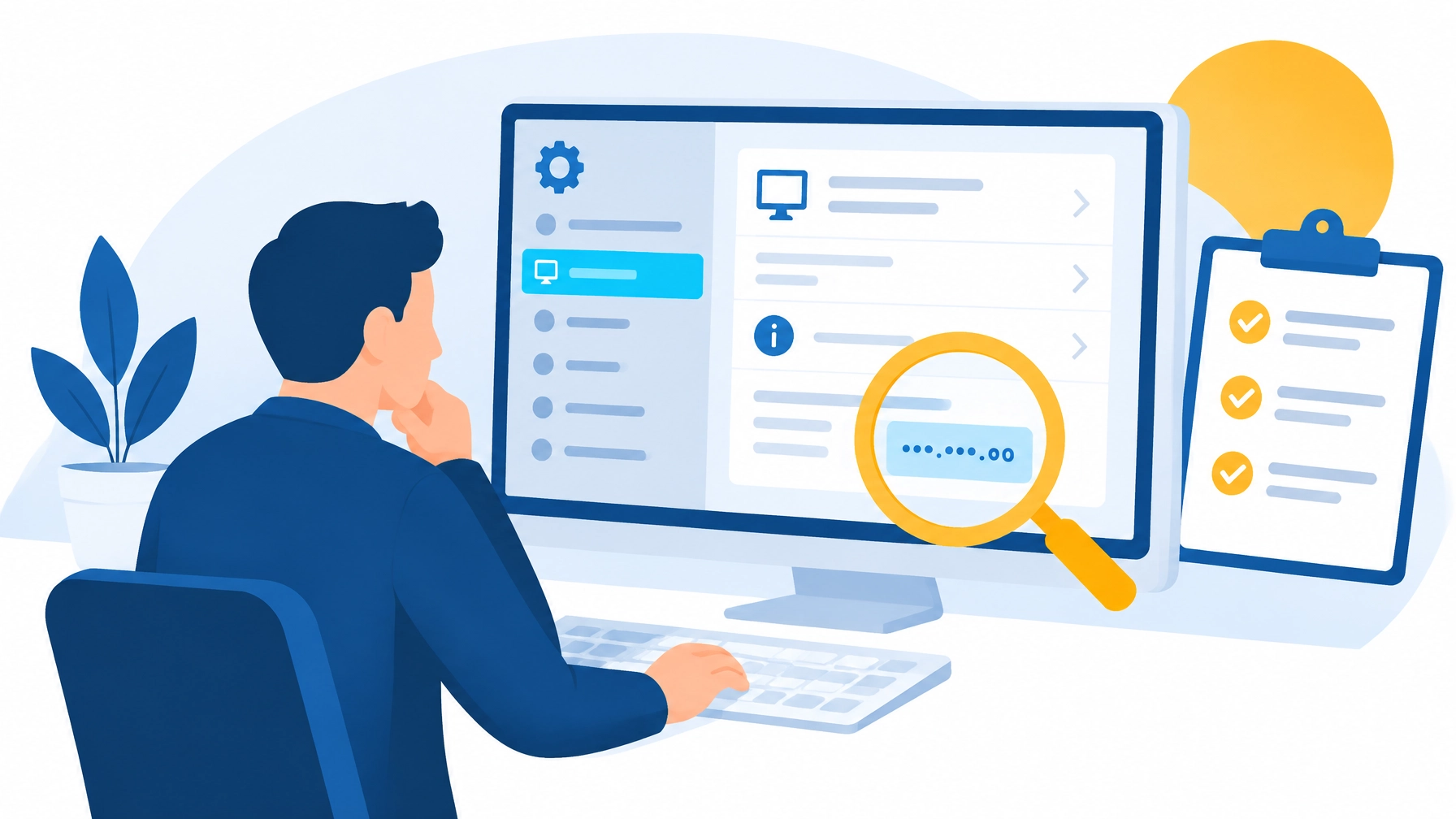
On each Windows computer, open:
Settings > System > About
Review the Windows specifications section, especially:
- Version — this tells you the release
- Edition — this tells you whether the Home and Pro lifecycle applies
- OS build
Do not rely on a user’s memory or a device’s purchase date. A newer computer can still be running an older feature release, while an older computer may already be on a supported version.
Check yours today. The Version line tells you the release, and the Edition line tells you whether it applies to you.
Create a basic inventory that includes the device name, assigned user, Windows edition, Windows version, last update date, and whether the device can access business email, cloud applications, file shares, or customer information.
Personal Laptops Used for Work Are Part of the Risk Surface
A personal laptop may sit outside the office, but location does not remove business risk.
If that laptop can reach a company mailbox, customer records, cloud storage, accounting software, or shared files, it is part of the environment you need to secure. Personal laptops count. If someone reads work email or opens work files on their own laptop, it is in scope and must meet the same rules.
Personal devices can introduce risks such as:
- Unsupported Windows versions
- Delayed updates and missed restarts
- Unmanaged antivirus or endpoint protection
- Shared use by family members
- Unsecured home networks
- Browser extensions or applications the business cannot review
We recommend documenting every personal device that accesses business resources. Then decide whether it will be enrolled in your management and security tools, restricted to approved applications, replaced with a company-managed device, or blocked from sensitive resources.
The goal is not to create unnecessary friction. The goal is to ensure that one overlooked laptop does not undermine protection across the business.
The 14-Day Patch Window Protects Your Business
The graphic also highlights a critical operational requirement: critical and high-risk updates should be installed within 14 days of release or availability.
That window is short by design. Vulnerabilities often become more dangerous after technical details or exploit code become publicly available. Delaying updates for weeks or months gives attackers more opportunity while leaving employees exposed.
A reliable patch process should:
- Identify which devices and applications need updates.
- Test important updates on a small group of representative devices.
- Deploy updates in controlled waves.
- Schedule required restarts outside critical work periods.
- Confirm installation success.
- Escalate devices that fail, remain offline, or repeatedly postpone updates.
- Keep records that demonstrate what was patched and when.
This is the difference between turning on automatic updates and operating a real patch management for small business program.
Your Action Plan Before October 13
Small businesses without dedicated IT departments can take the following steps immediately.
1. Check the version and edition
Review every company computer through Settings > System > About. Record the result instead of assuming all devices are identical.
2. Inventory every endpoint
Include desktops, laptops, remote workers’ computers, loaner devices, and personal laptops that access work email or files. Do not leave remote and hybrid devices out of the count.
3. Update Windows 11 24H2 devices
Move eligible Windows 11 24H2 Home and Pro devices to Windows 11 25H2 now. This is a small update with a single restart, not a rebuild. On a well-managed laptop, it has already happened, or it is a short job.
4. Replace or isolate unsupported systems
Windows 11 23H2 and earlier Home and Pro releases, along with standard Windows 10 installations, should not remain on the production network as ordinary business endpoints.
If a device cannot be upgraded, replace it or isolate it. Isolation may include removing access to business email, file shares, VPN services, and sensitive cloud applications while a replacement plan is completed.
5. Establish a recurring patch cadence
Schedule routine update reviews and define the maximum acceptable delay for critical and high-risk patches. Under Cyber Essentials, those updates should be installed within 14 days of release. Assign responsibility for monitoring failures and confirming that devices actually restart.
6. Check before your assessment, not during it
If you are going for Cyber Essentials—or renewing—check every device before your assessment, not during it. That includes office systems, remote endpoints, loaners, and personal laptops that touch business data.
Stay Ahead with Proactive IT Support
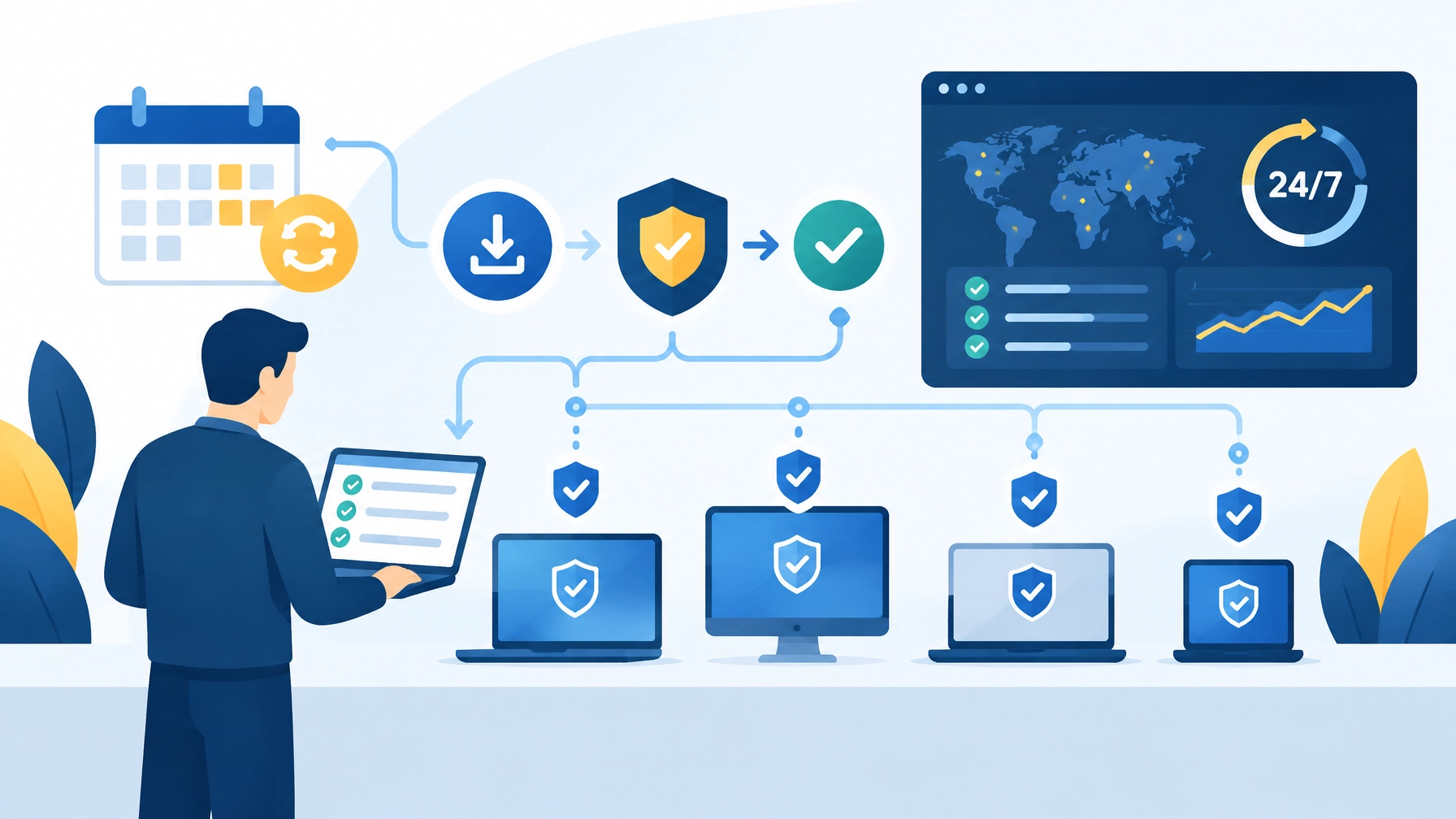
Manual checking is easy to postpone. A managed process makes supported software part of normal operations.
Southwest Technical Support delivers 24/7 monitoring, patch management, endpoint optimization, and proactive maintenance for small and midsize businesses. Our team can identify device versions, locate unmanaged endpoints, coordinate Windows upgrades, monitor update status, and address systems that fall behind.
We also help businesses improve endpoint performance, strengthen security controls, and plan hardware replacements before an unsupported system becomes an emergency. You gain a partner who watches for problems instead of waiting for an employee to report them.
Supported software is not a one-time project. It is an ongoing business requirement that protects uptime, productivity, and customer trust.
Let’s work together to confirm your Windows inventory, resolve unsupported devices, and put a dependable patch cadence in place. Contact Southwest Technical Support for a technology assessment, or review our managed IT and cybersecurity services.
Frequently Asked Questions
When does Windows 11 24H2 support end?
Windows 11 24H2 Home and Pro support ends on October 13, 2026 for practical business planning. Devices should be upgraded to Windows 11 25H2 or another supported release before that date.
Is it safe to keep using an unsupported version of Windows?
No. An unsupported operating system may continue working, but it will not receive normal security updates and vendor fixes. That increases exposure to vulnerabilities and complicates compliance, insurance, and incident response.
What happens if I do not update to Windows 11 25H2?
Your Windows 11 24H2 Home or Pro device will reach the end of regular servicing. It may continue to operate, but it will no longer have the same access to security and quality updates. Upgrade, replace, or isolate it.
Do personal laptops used for work need to be patched?
Yes. If a personal laptop can access work email, company files, or business applications, it is part of your risk surface. Inventory it, keep it supported and patched, and apply appropriate access controls.
What does Cyber Essentials require for Windows devices?
Cyber Essentials requires the software on every laptop and desktop that touches business data to be licensed and supported, with unsupported software removed. It also requires critical and high-risk updates within 14 days of release.
How quickly should critical security updates be installed?
Critical and high-risk updates should be installed within 14 days of release or availability. Businesses should use monitoring and patch management to identify failures and document completion.
Where can I check my Windows version?
Open Settings > System > About and review Version, Edition, and OS build under Windows specifications.
Sources
- Microsoft: Windows 11 release information
- Microsoft: Windows 11 Home and Pro lifecycle
- NCSC Cyber Essentials Requirements for IT Infrastructure v3.3 (read September 28, 2026)
- Southwest Technical Support services
- Southwest Technical Support pricing
Have an IT challenge to solve?
Our DFW team is ready to help. Get a free, no-pressure assessment.
Get in touch